
Guides
How to Stop Promotional Emails Without Unsubscribing
How to stop promotional emails: when to unsubscribe, how to tell spam from newsletters, and how to route bulk mail to one folder in Gmail, Outlook and iCloud.
6 min read
This article is also available in: Čeština
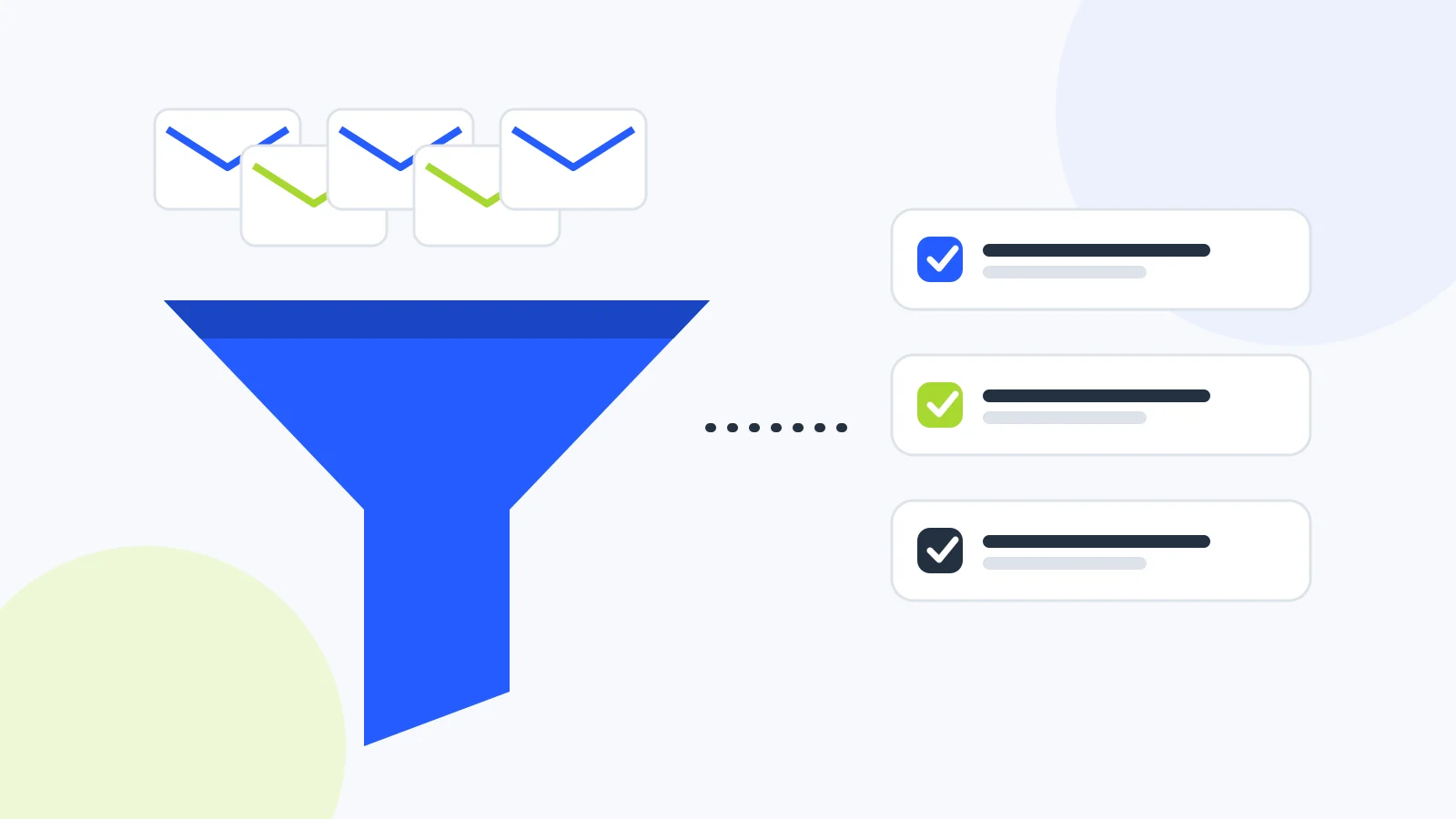
You don't have to unsubscribe from everything to stop promotional emails from taking over your inbox. Sort them into three groups instead: unsubscribe from what you never read, route what you occasionally want into one folder outside your inbox, and report actual spam. Your inbox stays for people, and you still get the deals and newsletters you care about.
This guide covers how to tell spam from newsletters, how to unsubscribe safely, and how to set up a catch-all folder in Gmail, Outlook and Apple Mail.
Spam vs. newsletter: what's the difference?
It matters, because each one is handled differently.
- A newsletter is mail you asked for. You signed up, or you bought something and didn't opt out of marketing.
- Promotional email from a legitimate business must follow the law. In the US, the CAN-SPAM Act requires a working opt-out and says it must be honored within ten business days. In the EU, marketing emails generally need your consent, or an existing customer relationship, and every message must offer an easy way to unsubscribe.
- Spam is unsolicited mail from someone you never gave permission to. Much of it is scams, fake prizes or phishing for your password.
A quick test: do you recognize the company, and does it make sense that they're writing? Then it's probably a newsletter and safe to unsubscribe from. Unknown sender, urgent pressure, or a request for your login? That's spam. Don't click anything.
How to unsubscribe from newsletters safely
For legitimate senders, unsubscribing is the cleanest fix:
- Look for the Unsubscribe link next to the sender's name. Gmail, Outlook and Apple Mail show it for many bulk senders and handle the request for you.
- If it's not there, scroll to the footer of the email and use the unsubscribe link.
- Skip the "tell us why" survey. Unsubscribing must work without it.
- If emails keep coming after a few days, mark them as spam. A sender that ignores opt-outs deserves it.
Since 2024, Gmail and Yahoo require large senders to support one-click unsubscribe and to process it within two days, so the built-in button is more reliable than ever.
Don't unsubscribe from spam. Clicking the link tells the sender your address is active, which usually means more spam. Mark it as spam and delete it.
When not to unsubscribe and what to do instead
Not every newsletter is clutter. Sales from your favorite store, industry news or a weekly digest are worth reading now and then. The problem isn't that they arrive; it's that they arrive in your inbox, between work emails, and pull your attention every time.
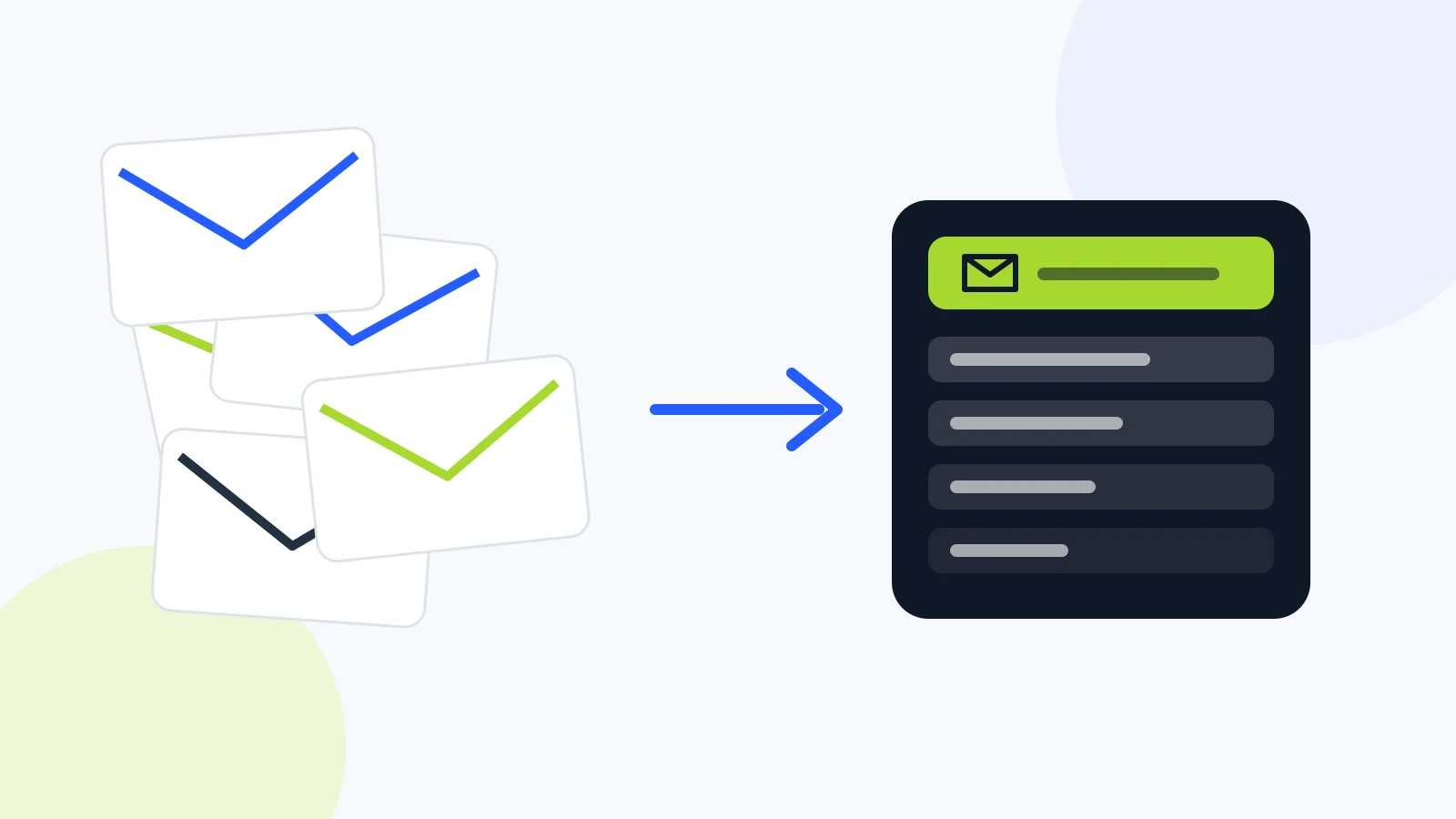
The fix is a catch-all folder. All bulk mail goes there, and you browse it when you have time, say on Friday afternoon. Nothing interrupts you, and nothing gets lost.
In Gmail
Gmail can separate bulk mail on its own with the Promotions and Social tabs; turn them on in your inbox settings. For more control, create a filter:
- Search for "unsubscribe" and add "list:" if you want mailing lists too.
- Create a filter from the results with Skip the Inbox and Apply the label "Newsletters".
In Outlook
Focused Inbox splits important mail from everything else. For a dedicated folder, add a rule: if the message body contains "unsubscribe", move it to Newsletters.
In Apple Mail and iCloud
Create a rule in iCloud.com Mail settings (it runs on the server) or in Apple Mail on the Mac, moving mail from shopping and newsletter senders into a Newsletters folder.
Prevent promotional emails at the source
The best promotional email is the one that never arrives.
- Untick marketing checkboxes when you sign up or check out. They're often pre-selected.
- Use a shopping address. Gmail and Outlook.com support plus addressing: yourname+shopping@gmail.com lands in the same inbox, and one filter on that address catches everything sent to it. You'll also see exactly who sold or leaked your address.
- Keep your work email out of contests, loyalty programs and free downloads.
- Do a quarterly sweep. Sort your newsletter folder by sender and unsubscribe from anything you haven't opened in three months.
How to bulk delete old newsletters
If thousands of old promotions are already sitting in your mailbox, don't delete them one by one. Work by sender:
- Search for mail from one sender, for example by the store's domain.
- Select all results. Gmail lets you select every conversation that matches the search, not just the first page.
- Delete or archive them.
- Unsubscribe right away, or add a filter to your newsletter folder, so the pile doesn't grow back.
In Outlook on the web, Sweep does this in one step and can keep deleting future mail from that sender.
Start with the senders who email you most. Ten or twenty stores and services often account for thousands of messages. If storage is tight, look for large attachments too; in Gmail, search for "larger:10M".
How InSortio tames newsletters
Keyword filters have a weak spot: they only catch mail containing the words you thought of. InSortio recognizes bulk mail by the sender and message headers, so newsletters and mailing lists go to a News folder without a single rule. Automated notifications, such as shipping updates, go to Later. It doesn't read message content to do this.
When you never want to see a sender again, move one of their messages to the Black Hole and their future mail goes straight there, without unsubscribing. Nothing is deleted; messages are only moved. Once a day, InSortio also suggests senders with at least four messages in News over the last 30 days, none of which you opened. One click sends them To black hole, or Keep them.
The daily digest shows what was filed away from your inbox, so you can bring back an interesting offer in one click. Old mail cleanup can regularly move News older than a set number of days to your archive, so the folder never piles up.
FAQ
Is it safe to click unsubscribe links?
Yes, for companies you know and signed up with. For unknown senders or suspicious messages, no: mark them as spam and delete them.
Why do I still get emails after unsubscribing?
Processing can take a few days. If mail keeps coming after that, the sender is likely breaking the rules. Mark it as spam.
Should I delete or archive promotional emails?
Delete freely. A promotion is worthless after a few weeks. If you'd rather not do it by hand, set up a regular cleanup of your newsletter folder.
Can my spam filter tell newsletters from spam?
Mostly. Spam filters focus on dangerous and unsolicited mail, so newsletters you signed up for usually get through. That's exactly why they deserve their own folder.
The bottom line
You can't get rid of promotional emails with one click, but you can get them under control in an afternoon. Unsubscribe from what you don't read, route the rest to one folder, and report spam. Your inbox goes back to being for people.
Want newsletters sorted for you? Try InSortio. It separates bulk mail on its own and sends what you don't want to the Black Hole. Learn more on the features page.
← All articlesMain navigation